An AI presentation maker takes a short prompt, such as "a 10-slide presentation about climate change for high school students", and creates slide titles, bullet points and a design for you. Some tools also add pictures, icons and speaker notes. You still need to check and edit everything, but the boring first draft is done in minutes instead of hours.
The catch is that "free" is usually limited. Many tools give you a small number of AI credits, add their logo to free presentations, or keep the best features for paid plans. The details below are based on each company's pages and recent reviews (October 2026). Free plans change often, so check the pricing page before you rely on one tool for something important.
Quick Comparison
| Tool | Best for | What you get for free |
|---|---|---|
| Gamma | Full deck from one prompt | Limited AI credits for free users; Gamma branding on free decks |
| Canva | Templates and design | Free plan includes a small monthly allowance of AI uses |
| Pitch | Team decks | Free plan with limited AI credits; free exports are branded |
| SlidesAI | Google Slides add-on | Small free allowance per year |
| Copilot in PowerPoint | Microsoft Office users | Needs a paid Microsoft 365 plan |
| Gemini in Google Slides | Google users | Needs a paid Google AI plan or Workspace plan |
| Any AI chatbot + PowerPoint/Slides | Unlimited free use | Free: AI writes the outline, you add the design |
Best free pick for beginners: try Gamma if you want a complete deck from one prompt, or Canva if you care most about design and templates. If you need many presentations without limits, use the free chatbot + PowerPoint or Google Slides method below.
1. Gamma: A Full Deck From One Prompt
Gamma is one of the most popular AI presentation tools. You type a topic or paste your notes, choose how many slides you want, and Gamma creates a complete presentation with layouts, text and images. You can then edit any card, change the theme or ask the AI to rewrite a section.
- Good: very fast, modern designs, works in the browser.
- Free limits: free users get a limited number of AI credits, and free presentations show Gamma branding. Some export options are limited on the free plan.
- Best for: students and freelancers who need a good-looking first draft quickly.
2. Canva: Templates Plus AI
Canva has thousands of presentation templates, and its AI features can create a design from a prompt or write text for your slides. Many people already use Canva for social media posts, so it is easy to learn.
- Good: huge template library, easy drag-and-drop editing, works on phone and computer.
- Free limits: the free plan includes a small monthly allowance of AI uses. Advanced AI design features use up that allowance faster, and some templates and elements are Pro only.
- Best for: anyone who wants a beautiful design and will write or edit the text themselves.
New to Canva? Our guide How to Use Canva AI for Free shows the free AI tools step by step.
3. Pitch: Collaborative Decks
Pitch is built for teams that work on presentations together. Its AI can generate a first draft from a prompt, and you can invite others to edit.
- Free limits: the free plan includes a limited number of AI credits, and free exports carry Pitch branding.
- Best for: small teams and group projects.
4. SlidesAI: Inside Google Slides
SlidesAI is an add-on for Google Slides. You paste text or type a topic, and it creates slides directly in your Google Slides file, so you keep using a tool you already know.
- Free limits: a small free allowance of presentations per year.
- Best for: students and teachers who already work in Google Slides.
5. Copilot in PowerPoint and Gemini in Google Slides
Microsoft and Google have built AI straight into their own presentation apps. Copilot in PowerPoint can create a presentation from a prompt or from a Word document, and Gemini in Google Slides can now create editable presentations too.
- Not free: Copilot in PowerPoint needs a paid Microsoft 365 plan (such as Personal or Family, which include a monthly allowance of AI credits) or a business Copilot licence. Creating presentations with Gemini in Slides needs a paid Google AI plan or a supported Google Workspace plan.
- Best for: people whose school or company already pays for these plans. Check with your IT team before buying anything.
The Free Method That Always Works: AI Chatbot + PowerPoint or Google Slides
If you hit the limits of the tools above, this method is free and has no limits. It takes a few minutes longer, but you keep full control.
- Open a free AI chatbot such as ChatGPT, Gemini or Claude.
- Ask for an outline, for example: "Create a 10-slide presentation outline about time management for university students. For each slide give a short title, 3 to 4 bullet points and 2 lines of speaker notes."
- Open PowerPoint or Google Slides and pick a theme you like.
- Copy each slide's title and bullet points into a new slide. In PowerPoint, you can also paste the whole outline into Outline View to create the slides faster.
- Add pictures, charts or icons, and paste the speaker notes into the notes area under each slide.
- Read every slide and fix anything that is wrong or too general.
Want better prompts? See our ChatGPT Prompts for Beginners.
I Tried Step 2 Myself (10 November 2026)
I asked the free plan of ChatGPT for a short outline: "Create a 5-slide presentation outline about how to start a YouTube Shorts channel with AI. For each slide give a short title and 3 bullet points." The answer came back in a few seconds.
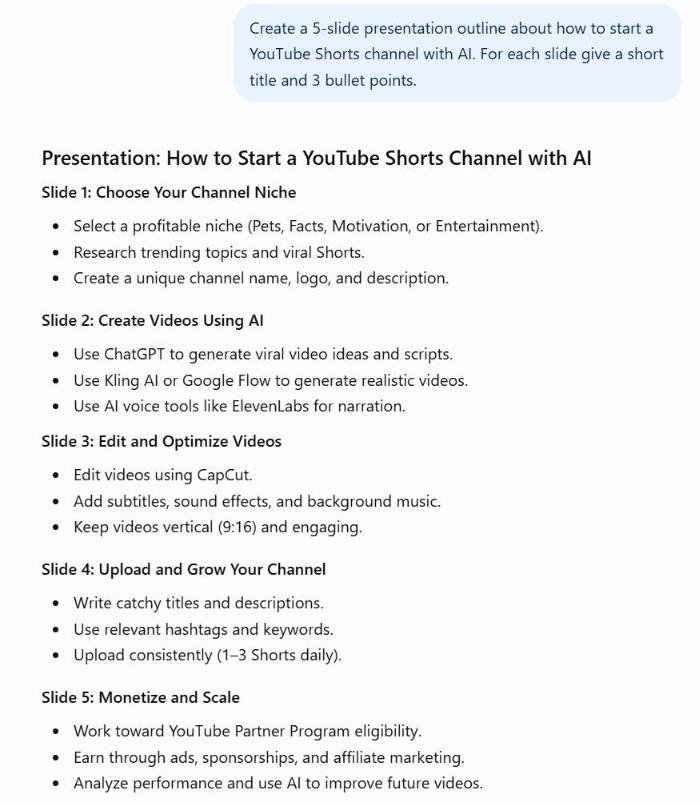
What I would change before using it (this is Step 6 in practice):
- "Earn through ... affiliate marketing": YouTube's own Shopping affiliate program is not available in Pakistan or the UAE yet, so for my readers this point needs a correction. See how AI Shorts really make money.
- "Upload consistently (1–3 Shorts daily)": that is a lot for a beginner with a job. I would write "a number you can keep up every week".
- Words like "profitable" and "viral" sound good but say very little. I would replace them with a real example from my own channel.
- No speaker notes: I did not ask for them, so I did not get them. Add "2 lines of speaker notes per slide" to your prompt if you need them.
The good part: the structure was useful, and it even listed tools I really use, such as Google Flow, ElevenLabs and CapCut. The outline is a fast first draft, not a finished presentation.
Tips for a Presentation That Does Not Look "AI-Made"
- One idea per slide. Cut long bullet lists down to 3 or 4 short points.
- Add your own examples. A local example or personal story makes slides memorable.
- Check facts and numbers. AI tools can invent statistics. Use real sources and add them on a final slide.
- Use real images carefully. Only use pictures you are allowed to use, such as the tool's own library or free stock sites.
- Practise speaking. Slides support you; they should not be read word for word.
Sharing Your Presentation as a PDF
Teachers and employers often ask for a PDF instead of a PowerPoint file. Most tools can save as PDF. If the file is too big to email or upload, a free tool like JanjuaPDF Compress PDF can make it smaller in your browser. JanjuaPDF is made by the same author as FuturMind AI; see our Best Free PDF Tools comparison for other options.
Related Guides
- Best AI Tools for Students in 2026
- How to Use Canva AI for Free in 2026
- Best ChatGPT Prompts for Beginners in 2026
- Best AI Tools for Small Business in 2026
- Best Free AI Image Generators in 2026
Frequently Asked Questions
What is the best free AI presentation maker?
For most beginners, Gamma and Canva are the easiest. Gamma builds a full deck from one prompt, and Canva gives you many templates plus a monthly allowance of free AI uses. For unlimited free use, ask any AI chatbot for an outline and paste it into PowerPoint or Google Slides.
Can ChatGPT make a PowerPoint for free?
ChatGPT can write the slide titles, bullet points and speaker notes for free. You then paste that outline into PowerPoint or Google Slides and pick a design. Some add-ins and tools can turn it into slides automatically, but their free limits vary.
Is Gamma completely free?
No. Gamma gives free users a limited number of AI credits, and free decks carry Gamma branding. It is enough to try it and make a few presentations.
Is Copilot in PowerPoint free?
No. Copilot in PowerPoint needs a paid Microsoft 365 plan, such as Personal or Family, which includes a monthly allowance of AI credits, or a business Copilot licence.
Can I use AI slides for school or work?
Yes, but check your school's or company's rules, read every slide, fix mistakes and add your own ideas and sources. AI can get facts wrong.
Final Thoughts
AI presentation makers save a lot of time, but they work best as a starting point. Use Gamma or Canva for a quick, good-looking draft, and the free chatbot method when you need unlimited presentations. Then add your own ideas, check every fact and practise before you present.