How to Use Canva AI for Free in 2026 (Beginner Guide)
A simple step-by-step guide to creating posts, thumbnails and other designs with Canva's AI tools, without paying anything.
Published: September 28, 2026 · Updated: November 2, 2026 · By Ghulam Mustafa Janjua
Canva is one of the easiest design tools for beginners. You do not need any design skills to make social media posts, YouTube thumbnails, presentations or simple flyers. In 2026, Canva also has a full set of AI tools that can write text, suggest designs and even create images from a short description.
The good news: you can try many of these AI tools on the free plan. The important thing is knowing what is free, what is paid, and how to use your limited free AI credits wisely. This guide explains everything in simple steps.
Quick Overview
- Create a free Canva account
- Understand what the free plan includes
- Open Canva AI and describe what you want
- Pick a design and edit it
- Use Magic Write for text
- Download and share your design
What Is Canva AI?
Canva AI is the name for all the artificial intelligence features inside Canva. You may also see the older name Magic Studio. In 2026, Canva added a chat-style assistant, so you can simply type what you need, for example "Instagram post for a coffee shop sale", and Canva suggests designs, text and images.
Some of the main Canva AI tools are:
- Canva AI chat: describe your idea in plain words and get design suggestions
- Magic Write: writes captions, headlines, short descriptions and ideas
- AI image generation: creates images from a text description
- Magic Charts: turns numbers into simple charts
- Photo editing tools: such as Background Remover and Magic Eraser
What Is Free and What Is Paid?
Canva's free plan is permanent, not a trial. But its AI tools work with a monthly AI allowance. Each time you use an AI tool, it uses part of that allowance, and bigger tools use more of it. When it runs out, you can still use normal Canva features, and the allowance resets the next month.
- Chatting with Canva AI
- Magic Write (text writing)
- Magic Charts
- Mockups and simple photo or video animations
- Background Remover, with a limited number of uses per month
- Thousands of free templates, fonts and elements
- Unlimited Background Remover
- Magic Eraser and Magic Expand
- Magic Resize (one design into many sizes)
- Brand Kit and many premium elements
- The newest Canva AI 2.0 extras, such as memory and connectors
Important: Canva changes its plans and limits from time to time, and some features differ by country. Before you rely on a feature, check the current details on Canva's official pricing page.
Step 1: Create a Free Canva Account
Go to Canva's website or download the Canva app and sign up with your email or Google account. Choose the free plan. You do not need to add a payment card to use the free version.
Step 2: Open Canva AI
On the Canva home page, look for the Canva AI option or the search and chat box at the top. This is where you describe what you want to make. On mobile, it is usually on the main home screen of the app.
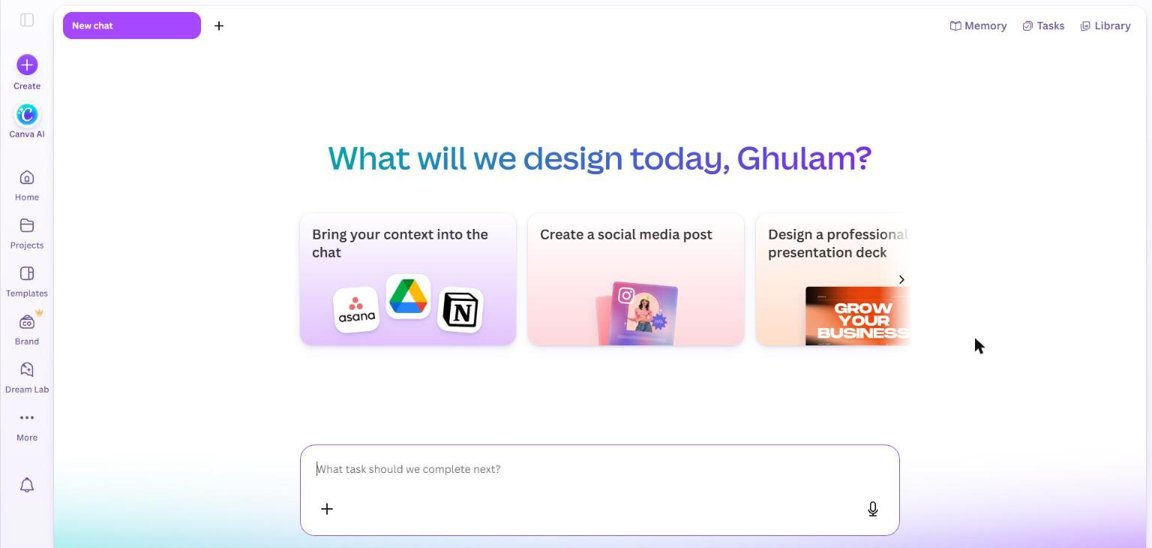
Step 3: Write a Clear Prompt
A prompt is simply your instruction to the AI. The clearer your prompt, the better the result, and the fewer AI credits you waste on retries.
A good Canva prompt includes:
- What you are making (Instagram post, YouTube thumbnail, flyer)
- Topic or purpose (sale, tutorial, event)
- Style (bold, minimal, colorful, dark)
- Main text you want on the design
Make a post
Better prompt:Create a bold, colorful Instagram post for a mobile phone shop. Main text: "50% Off Phone Covers This Weekend". Modern style with a dark background and bright yellow accents.
Step 4: Choose a Design and Edit It
Canva will show you a few design options. Pick the one closest to what you want and open it in the editor. Now make it your own:
- Click any text to change the words
- Change colors to match your brand
- Replace images with your own photos
- Move or resize elements by dragging them
- Delete anything you do not need
Tip: Editing by hand does not use any AI credits. Use AI to get a good starting point, then finish the design yourself.
Step 5: Use Magic Write for Text
Magic Write can help when you do not know what to write. Select a text box, open Magic Write and ask for what you need, for example "Write 3 short catchy headlines for a fitness gym offer".
Always read the result and improve it. AI text can sound generic, and you know your audience better than the AI does. For longer writing, you can also use ChatGPT; see our 50+ free ChatGPT prompts for beginners.
Step 6: Download and Share
When your design is ready, click Share and then Download. For most social media posts, PNG gives the best quality. For printing, choose PDF Print. You can also share a view-only link with a friend or client.
How I Use Canva Myself
I use Canva on the free plan for the design side of my YouTube channel, MJ Pets Shorts. I create the clips in Google Flow or OpenArt, add the voice with ElevenLabs, then finish the editing in CapCut and Canva. See my full Shorts workflow.
5 Useful Things to Make with Canva AI
1. YouTube Thumbnails
Use a bold template, a large readable title and a clear face or object. Keep text to 3–5 words so it is readable on phones. Our AI tools for YouTube creators guide lists more helpful tools.
2. Instagram and Facebook Posts
Ask Canva AI for a post design, then use Magic Write to create the caption. Keep the same colors and fonts across posts so your page looks professional.
3. Fiverr Gig Images
A clean gig image can increase clicks on your Fiverr gig. Show your service name and one strong sample. If you want to start freelancing, read How to Earn Money on Fiverr with AI.
4. Simple Presentations
Describe your topic and the number of slides, and let Canva create a first draft. Then check every slide and fix the facts and wording.
5. AI Images for Backgrounds
Use AI image generation for backgrounds and illustrations. For more options, see our best free AI image generators guide.
Tips to Save Your Free AI Credits
- Write one clear, detailed prompt instead of many quick ones
- Start from a template when possible, since templates are free to use
- Do small edits by hand instead of asking the AI again
- Save designs you like and reuse them as your own templates
- Use AI image generation only when a free photo or element will not work
Common Beginner Mistakes
- Using too many fonts and colors in one design
- Putting too much text on a small post
- Publishing AI text without reading it
- Using other companies' logos or famous characters without permission
- Assuming every element is free, even ones marked as premium
- Wasting AI credits by writing very short, unclear prompts
Can You Earn Money with Canva Skills?
Yes, many beginners earn by designing social media posts, thumbnails, flyers and presentations for small businesses and creators. Canva AI makes the work faster, but clients still pay for good taste, clear communication and on-time delivery.
Before selling designs, read Canva's license rules, especially for premium elements and logos. Start with a few sample designs for your portfolio, then offer your service on platforms like Fiverr or to local businesses. For more ideas, see How to Earn Money with AI in 2026.
Is Canva Pro Worth It?
For most beginners, the free plan is enough to learn. Consider upgrading only when you regularly need features like unlimited Background Remover, Magic Resize or Brand Kit, or when you start doing paid design work and the time saved is worth the monthly cost. Check Canva's official pricing page for current prices in your country.
Frequently Asked Questions
Is Canva AI really free?
Partly. The free Canva plan includes some AI tools and a limited monthly AI allowance. Some tools, such as Background Remover, have only a few free uses per month, while others, such as Magic Eraser and Magic Resize, need a paid plan. Always check Canva's pricing page for the current limits.
What happens when my free AI credits run out?
You can keep using normal Canva features like templates, text, shapes and free elements. The AI allowance usually resets each month, or you can upgrade if you need more.
Can I use Canva AI designs for business or Fiverr work?
In many cases yes, but you must follow Canva's content license and terms. Do not use other brands' logos or copyrighted characters, and check the license of any premium element before using it in client work.
Should I make my logo with Canva AI?
Canva AI is fine for ideas and simple starter logos. If you want a logo you can trademark, it is safer to create a fully original design, because template-based logos may not be unique.
Does Canva AI work on mobile?
Yes. Canva works in the browser and in the Canva mobile app, although some features may look different or be easier to use on a computer.
Final Recommendation
Start with the free plan. Use Canva AI to get a quick starting design, then edit it yourself so it looks unique. Write clear prompts, save your AI credits and practice by making one design every day. In a few weeks, you will be able to create professional looking graphics for your own projects or for clients.
Making slides for school or work? Compare Canva with other free tools in our guide to the Best Free AI Presentation Makers in 2026.
Turn Your Design Skills into Income
Learn how beginners are selling AI-powered services on Fiverr.
Earn Money on Fiverr with AI