Students, freelancers, job seekers and small business owners all work with PDFs every day. You do not need to buy expensive software for simple jobs such as joining files, making a file smaller or turning photos into a PDF. Good free tools can do all of this in a web browser, on a computer or on a phone.
The big difference between free PDF tools is not only what they can do. It is also how many tasks you get for free and where your file goes. Most online tools upload your document to their servers, process it there and delete it later. A newer type of tool does the work inside your own browser, so the file never leaves your device.
The free limits below are based on each tool's own pages and recent reviews (October 2026). Free plans change often, so check the pricing page before you depend on one tool for important work.
Disclosure: JanjuaPDF, one of the tools in this list, is a free PDF website made by the same author as FuturMind AI. We have included it because it fills a real gap (private files that are not uploaded), and we explain its limits honestly below.
Quick Comparison: Best Free PDF Tools in 2026
| Tool | Best for | Free without sign-up? | What happens to your file |
|---|---|---|---|
| iLovePDF | Almost everything: merge, compress, convert, OCR, sign | Yes | Uploaded, deleted after a few hours |
| PDF24 Tools | Huge free toolbox, no sign-up | Yes | Uploaded, deleted after 1 hour (offline Windows app too) |
| Smallpdf | Clean, easy design | Limited free tasks per day | Uploaded, deleted after a short time |
| Sejda | Editing text in a PDF | A few free tasks, file size and page limits | Uploaded, deleted after a few hours |
| Adobe Acrobat online | One quick task with Adobe quality | About one free task, then sign-in or paid | Uploaded to Adobe |
| JanjuaPDF | Private files, phone use, 30+ tools | Yes, no sign-up | Not uploaded: works in your browser |
Simple rule: for everyday files, iLovePDF or PDF24 Tools will handle almost anything. For private files such as bank statements, ID cards, payslips or contracts, use a tool that works in your browser or offline, so the file is not sent to anyone's server.
1. iLovePDF: The All-Round Favourite
iLovePDF is one of the most popular PDF websites in the world. It has tools to merge, split, compress, convert to and from Word, Excel, PowerPoint and JPG, add page numbers, watermark, rotate, unlock, protect, sign and more. It also has mobile apps and a desktop app.
- Good: very easy to use, many tools, works without an account for most tasks.
- Free limits: file size and the number of files per task are limited on the free plan, and some features such as OCR on many pages need Premium.
- Privacy: files are uploaded to iLovePDF's servers and are deleted automatically after a few hours.
2. PDF24 Tools: Huge Free Toolbox
PDF24 Tools is run by a German company and is funded by ads. Its website says the online tools are free for everyone, with no hidden costs or subscriptions. It offers dozens of tools, from compressing and merging to OCR and creating PDFs from almost any file.
- Good: very generous free use, no account needed, many advanced tools.
- Privacy: online files are processed on servers in the EU and are deleted automatically after one hour.
- Bonus: PDF24 Creator is a free desktop app for Windows that works offline, so files stay on your computer.
3. Smallpdf: Clean and Simple
Smallpdf has a clean, friendly design and covers all the common tasks: compress, convert, merge, edit and e-sign. It works well for people who only need a PDF tool once in a while.
- Good: very simple screens, good quality results.
- Free limits: the free plan allows only a small number of tasks per day. After that, it asks you to wait or upgrade to Pro.
- Privacy: files are uploaded and deleted from its servers after a short time.
4. Sejda: Best for Editing Text in a PDF
Sejda is popular for its online PDF editor, which lets you change existing text, add text, images, links and form fields. It also has merge, split, compress and convert tools.
- Good: one of the best free online editors for fixing a typo in a PDF.
- Free limits: only a few free tasks are allowed in a period, and large files or documents with many pages need a paid pass.
- Privacy: files are uploaded and Sejda says they are deleted automatically after a few hours. A desktop version is also available.
5. Adobe Acrobat Online: One Quick Task
Adobe created the PDF format, and its free online tools give excellent quality. They are best for one quick job rather than daily use.
- Free limits: according to Adobe's help page, most tools give one free transaction without signing in. With a free Adobe account you can fill, sign, comment and share PDFs, but premium tools such as converting or compressing are limited to about one free use every 30 days.
- Watch out: a password added with Adobe's free Protect PDF tool cannot be removed without a paid plan or a trial.
- Privacy: files are uploaded to Adobe's cloud.
6. JanjuaPDF: Free PDF Tools That Don't Upload Your Files
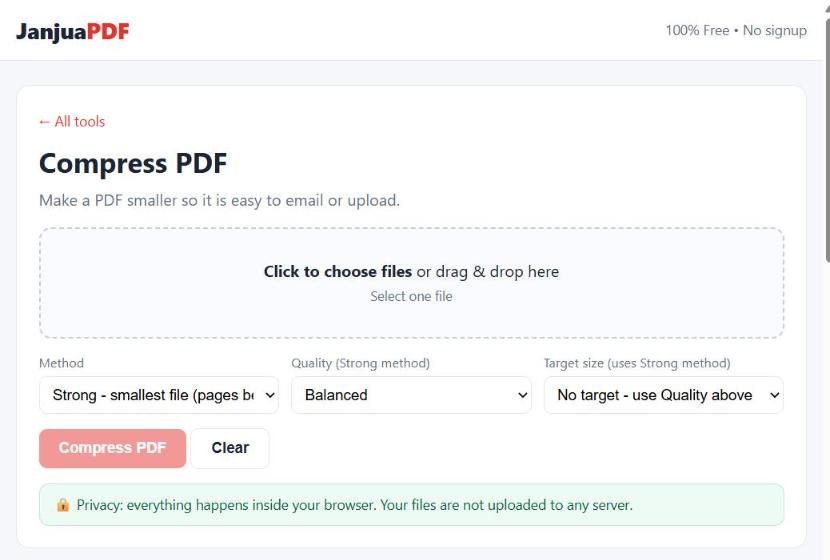
JanjuaPDF is a free PDF website with more than 30 tools. The main difference is that the PDF work happens inside your own browser. Your file is not uploaded to a server, so it is a good choice for private documents. It also works well on phones.
Popular free tools:
- Merge PDF and Split PDF
- Compress PDF (for example, to fit a 100 KB or 200 KB upload limit)
- PDF to Word, Word to PDF, PDF to Excel and JPG to PDF
- Sign PDF, Fill PDF Form and Edit PDF (add text and images)
- Redact PDF to black out private details, and Scan to PDF with your phone camera
Why I Can Explain This Tool in Detail
I built JanjuaPDF myself, step by step, with the help of Claude. It now has 32 free tools. Because I made it, I know exactly how it works: the PDF is processed by your own browser, and the page never sends the file to a server.
Honest limits:
- Because your own device does the work, very large files can be slow on older phones.
- It cannot change the original text of a PDF the way Sejda's editor can. You can add new text and cover old parts instead.
- OCR (reading text from scans) supports English only for now.
- Converted Word and Excel files may need small fixes when the original layout is complex.
Which Free PDF Tool Should You Use?
- Merge or split PDFs: iLovePDF, PDF24 Tools or JanjuaPDF.
- Compress a PDF for an online form: iLovePDF or PDF24 for normal files. JanjuaPDF if the file contains private details.
- Edit existing text: Sejda's online editor.
- Convert PDF to Word: iLovePDF or PDF24 for best layout, JanjuaPDF for private files.
- Sign a PDF on your phone: JanjuaPDF or Adobe (free account).
- Bank statements, ID cards, contracts: a browser-based tool such as JanjuaPDF, or an offline desktop app such as PDF24 Creator.
- Work offline on Windows: PDF24 Creator.
Safety Tips for Using Free PDF Tools
- Check the address. Make sure the website address is correct and starts with https before you open a file.
- Avoid fake download buttons. Ads on some sites look like download buttons. Real tools show your result clearly after processing.
- Do not install unknown programs just to convert one file. Use the browser version instead.
- Remember your passwords. If you lock a PDF with a password and forget it, free tools cannot remove it for you.
- Keep the original. Save a copy of the original file before compressing, redacting or editing.
- Redact properly. Drawing a black box in some editors only hides text visually. Use a real redaction tool that removes the text underneath.
Related Guides
- 10 Best Free AI Tools for Beginners in 2026
- Best AI Tools for Students in 2026
- Best Free AI Tools for Freelancers in 2026
- Best AI Tools for Small Business in 2026
- How to Spot Online Job Scams in 2026
Frequently Asked Questions
What is the best free PDF tool online?
It depends on the job. iLovePDF and PDF24 Tools cover almost every task for free. If your file is private, a tool that works inside your browser without uploading, such as JanjuaPDF, is a safer choice. Adobe Acrobat online is good for a single quick task.
Are free online PDF tools safe?
Well-known tools use encrypted connections and say they delete uploaded files after a short time. Still, most of them send your file to their servers. For bank statements, ID cards or contracts, use a tool that processes files in your browser or a desktop app that works offline.
Can I merge and compress PDFs for free without signing up?
Yes. iLovePDF, PDF24 Tools and JanjuaPDF let you merge and compress PDFs without creating an account. Adobe and Smallpdf allow only a small number of free tasks before asking you to sign in or upgrade.
Which free PDF tool works without uploading files?
Browser-based tools such as JanjuaPDF process your PDF on your own device, so the file is not sent to a server. Offline desktop apps such as PDF24 Creator for Windows also keep files on your computer.
Do free PDF tools add a watermark?
The tools in this guide do not add a watermark to normal results. Some services limit file size, the number of tasks per day or advanced features such as OCR on the free plan instead.
Final Thoughts
You do not need paid software for everyday PDF jobs. iLovePDF and PDF24 Tools can handle almost any task for free, Sejda is great for quick text edits, and Adobe is fine for a single job. For private documents, choose a tool that keeps the file on your own device.
Bookmark two or three of these tools, so the next time a form asks for "PDF under 200 KB", you can finish the job in a minute.